




















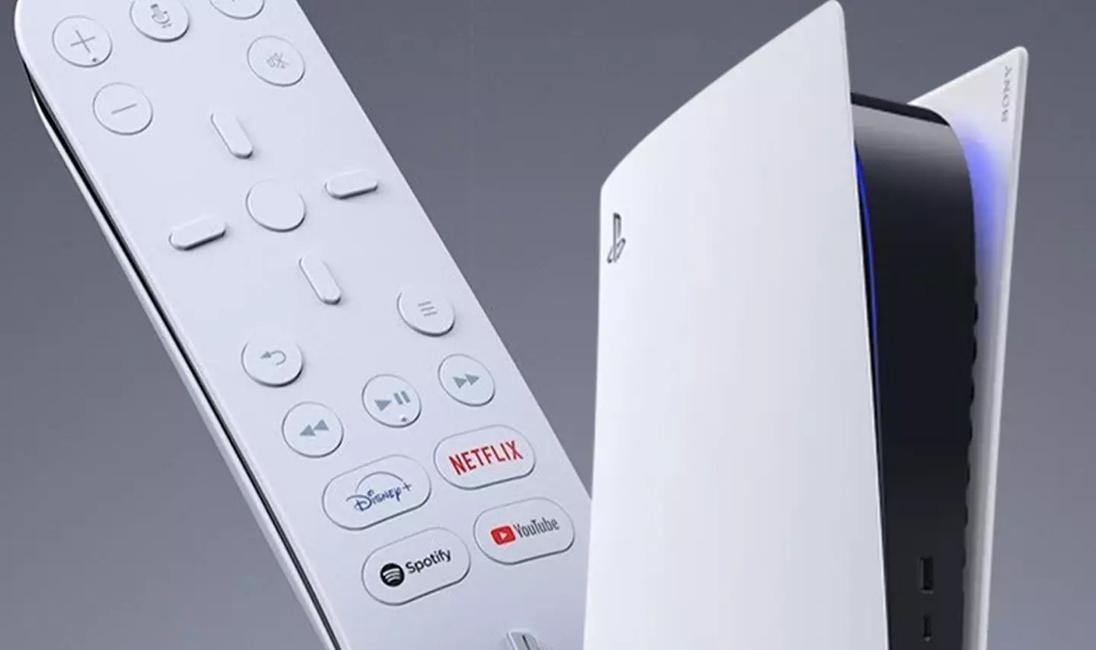
Alright, let's just get this out of the way: how many remotes are currently on your coffee table? Go on, count 'em. TV, soundbar, maybe a streaming stick… and then, if you're like me, a dedicated PS5 Media Remote that, while handy, is just another thing. It’s the little things, isn't it? The sheer mental load of remembering which remote does what, or worse, losing one in the couch cushions when you just want to pause Netflix.
Well, what if I told you there's a way to cut down on that remote clutter, specifically for your PlayStation 5 media needs, without even buying a new gadget? Yes, you heard me right. We’re talking about the magical, often-overlooked world of PS5 Media Remote Bypass – essentially, getting your existing TV remote to play nice with your console. It’s less of a 'bypass' and more of an 'integration,' really. And honestly, it’s a game-changer for casual movie nights or quick streaming sessions.
The HDMI-CEC Revelation: Your TV's Secret Handshake with Your PS5
Here’s the thing: most modern TVs and devices, including your PlayStation 5, speak a secret language over HDMI cables. It's called HDMI-CEC (Consumer Electronics Control), and it's designed to let devices control each other. Think of it like a universal remote built right into the cables you already use. I mean, it’s been around for ages, often under different brand names – Samsung calls it Anynet+, LG has SimpLink, Sony's Bravia Sync, you get the picture. But so many people just… don't know it's there, or how powerful it can be.
I remember one particularly chaotic movie night, juggling three remotes just to watch a horror film on my PS5. The frustration was real. Then a friend, who's always tinkering with his home theater, casually mentioned checking for CEC settings. My mind was blown. It was such a simple fix, buried in a menu I’d probably scrolled past a hundred times. This isn't groundbreaking, cutting-edge tech, but rather a widely available feature waiting to be unleashed. For gamers who also enjoy media, knowing this feels like a genuine cheat code!
Getting Your TV and PS5 to Play Nice: A (Mostly) Simple Setup
So, how do we get this glorious Sprunki-Pyramixed remote setup going? It’s usually pretty straightforward, though every TV manufacturer likes to hide their settings in a slightly different place. First, you'll need to enable CEC on your TV. Dig into your TV's settings, often under 'System,' 'General,' or 'External Inputs.' Look for 'HDMI-CEC,' 'Anynet+,' 'SimpLink,' etc., and toggle it ON. Don’t be shy, explore those menus!
Next, hop over to your PS5. Go to 'Settings' > 'System' > 'HDMI.' Here, you’ll find 'Enable HDMI Device Link.' Make sure that's switched on. Sometimes, after enabling both, you might need to power cycle both your TV and your PS5 – just turn them off completely and then back on. This 'reboot' helps them recognize each other. It’s a bit like giving them a friendly nudge to start their conversation. Suddenly, your TV remote's directional pad, select button, and even play/pause functions should start controlling your PS5’s media interface. Pretty neat, right?
Why Bother? Beyond Just a Remote
Beyond the obvious benefit of fewer remotes, the beauty of the PS5 Media Remote Bypass (via CEC, of course) is the seamless experience. Imagine this: you turn on your TV, it automatically switches to your PS5's input, and you're immediately navigating the PlayStation's menu with your TV remote. No fumbling, no switching inputs manually. It just works. It makes the PS5 feel like a more integrated part of your home entertainment system, rather than a separate gaming box. It's especially useful if you've got younger kids or less tech-savvy family members who just want to watch something without a complicated remote lesson.
But What About the Official PS5 Media Remote? Is It Obsolete?
Now, I’m not saying the official PS5 Media Remote is completely useless. Far from it! It has dedicated buttons for streaming apps, which is super convenient for some. Plus, it controls TV power and volume independently, which is something HDMI-CEC often doesn't handle as gracefully across all setups. For those who watch a ton of media and want those direct app shortcuts, the official remote still holds its own. But for most of us, who just want to pause a movie or navigate Netflix without reaching for a different slab of plastic, the TV remote bypass is fantastic. It's all about finding what works for you and your specific setup, right?
Quick FAQs on PS5 Media Remote Bypass
Does my TV even have HDMI-CEC?
Most TVs made in the last decade or so do, though it might be called something different like Anynet+, SimpLink, or Bravia Sync.
Will this really replace all my PS5 media remote functions?
For basic playback (play, pause, navigation), absolutely! Dedicated app buttons usually remain unique to the official PS5 remote.
Why isn't my TV remote controlling my PS5?
Double-check that HDMI-CEC is enabled on both your TV and your PS5, and try power cycling both devices.
Is 'PS5 Media Remote Bypass' just a fancy term for HDMI-CEC?
Pretty much! It's the technical term for how you can bypass needing a separate PS5 media remote by using your TV's control system.
So there you have it. A little digging into your settings, and you can reclaim some coffee table real estate and simplify your entertainment life. Give it a try – you might just wonder why you didn't do it sooner. It’s those small, quality-of-life improvements that truly make a difference in our digital worlds, isn't it?
- First important point about the content
- Second point with detailed explanation
- Another noteworthy detail
- Final concluding thought